¶ GCMS Standard Operating Procedure
Superusers:
- Mariah: mcr2218@columbia.edu | 956-329-3336
- Tyler: tgc2123@columbia.edu | 407-620-0339
¶ Sample Prep
Note: Proper sample prep is incredibly important for the well-being of the GC.
- Dilute Samples: All samples should be incredibly diluted using a volatile organic solvent (EtOAc, MeCN, DCM). You should not see a solvent peak on your chromatogram.
- Concentration Limit: All samples should have a maximum concentration of about 1µM. (For example, take one drop of an NMR sample and dissolve up to the 1.5mL line on the vial for an acceptable sample.)
- Color: Since your sample should be dilute, it should have no color. If it is incredibly colored, dilute further.
- No Solids: Your sample should have no solids ever. If your sample is heterogeneous, filter using celite before preparing sample.
- Mix Well: After adding the volatile solvent to the GC vial, mix well and ensure no solids crash out.
Just remember NO SOLIDS and DILUTE!!!
¶ Running Your Sample
-
Login to the computer using the password provided after training from Mariah or Tyler.
-
If the application ‘GCMS’ is not open already, open it and allow for all temperatures to stabilize.
-
Rack Loading: Place your sample on the rack.
- Rack 3: Closest to the user.
- Rack 2: Behind Rack 3.
- Rack 1: In the way back.
- Make note of your vial position which is indicated on the top left of your vial.
-
Check Rack: Ensure the vial rack is not out of place because this could dent the needle.
-
Sequence: If no sample is running, click ‘Sequence’ at the top then click ‘Load Sequence’. Press OK/Open/Save for anything that pops up. Once you have the option, click ‘Edit Sequence”. The sequence table shown below should pop up.
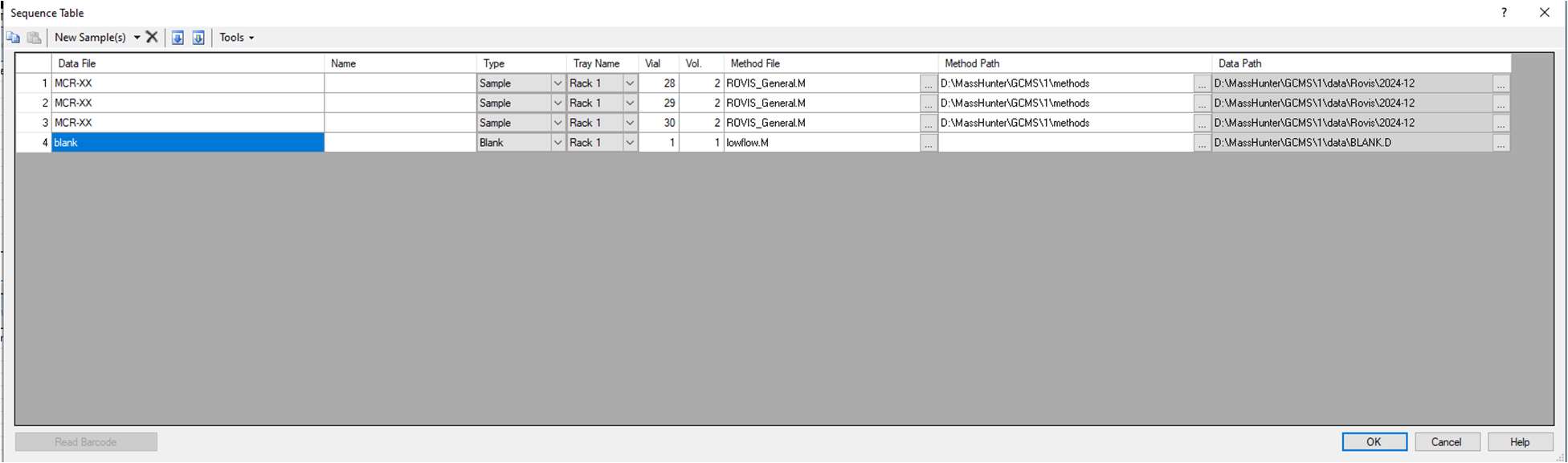
- NEVER delete the blank and all your samples should be before the blank.
- Name: Nothing has to go here.
- Type: Should always be ‘Sample’.
- Tray name: Is Rack 1, 2, or 3.
- Vial: Is your sample position.
- Vol.: Is the amount injected and should never be more than 2.
- Method File/Method Path: Pick through the folder. Ensure
Data Pathis in the ‘Rovis’ folder under the correct month.
Available Methods:
- ROVIS_LOW
- ROVIS_GENERAL
- ROVIS_HIGH
- JRDOPT1
- JRDOPT3
- ROVIS_MCROPT
If you need a specific method, talk to Mariah or Tyler and they can add one for you.
-
Run: Click ‘OK’. Under ‘Sequence’ click ‘Save Sequence’, then click ‘Run Sequence’ to run. Make sure to click ‘Run Sequence’ again when prompted.
-
Edit Running Sequence: If a sample is already running, you can instead click ‘Edit Sequence’ and follow the same inserting sample procedure. Once you have added your samples, click OK and you will be asked to ‘save’. Click ‘Save Sequence’.
¶ Running Sample Etiquette
- Do not give the password to anyone who has not been trained. If someone asks from another lab to use it, direct them to the superusers.
- Make sure your sample name has your initials, so we can keep track of who is using the instrument.
- Don't run more than 6 samples at a time unless no one else is using it.
- Queueing: If you have more than 6 samples, someone else is allowed to put their samples in front of you in the queue.
- Errors: If somebody’s sample didn’t run, let them know and let Mariah or Tyler know.
- If you are unsure what to do ASK!
¶ Analyzing Your Data
-
To look at your data, find the ‘GCMS Data Analysis’ App.
-
Find your data on the left-hand side, double click the file name and the chromatogram should pop up.
-
To see the mass spectrum for a peak, double right click on your peak.
-
Once your mass spectrum pops up you can double right click again to compare to other molecules in the analysis library.